
How to use Payment Portfolio
Payment Portfolio is a one stop workspace that allows you to view and manage your options for making payments in a unified manner across TikTok for Business platforms.
Before you begin
Only a Business Center admin, or Business Center member with a finance manager role can manage each ad account's budget.
If your account has less than 3 Business Centers, then any Business Center Admin or Finance Manager can trigger the upgrade.
If your account has more than 3 Business Centers, then only the Business Center Admin or Finance Manager with permission to access all the Business Centers can proceed with the upgrade.
Ad accounts must be in the approved status to be included in the Payment Portfolio.
How to upgrade to your Payment Portfolio in Business Center
Depending on your billing option, you may see a prompt in your Business Center to upgrade to Payment Portfolio.
Click the Upgrade now button to proceed.
Click Next to merge your cash balances in your Payment Portfolio.
Select how ad accounts are grouped into Payment Portfolios. Ad accounts will use the funds and payment methods of the Payment Portfolio they're linked to.
Select your budget preference for ad accounts.
Keep unlimited budgets: Ad accounts with unlimited budgets will have unlimited use of Payment Portfolio funds.
Use remaining balance as budgets: Ad accounts with unlimited budgets will get one-time budget caps equal to their current balances.
Select the payment methods from your ad accounts that you want to add into your unified Payment Portfolio.
Choose which payment method you want to be the primary one that will be the first payment method to pay for your ads.
[For monthly invoicing advertisers only] Allocate credit line: You can choose the percentage amount of your credit line that you would like to allocate to each Payment Portfolio.
Click Confirm to proceed. Note: The time to complete the upgrade may vary depending on how many ad accounts are owned by your Business Center account. During this period, you are unable to make changes to your payment methods or budget adjustments. We recommend having at least one day's worth of budget before making the switch.
You'll receive a notification once the upgrade is complete.
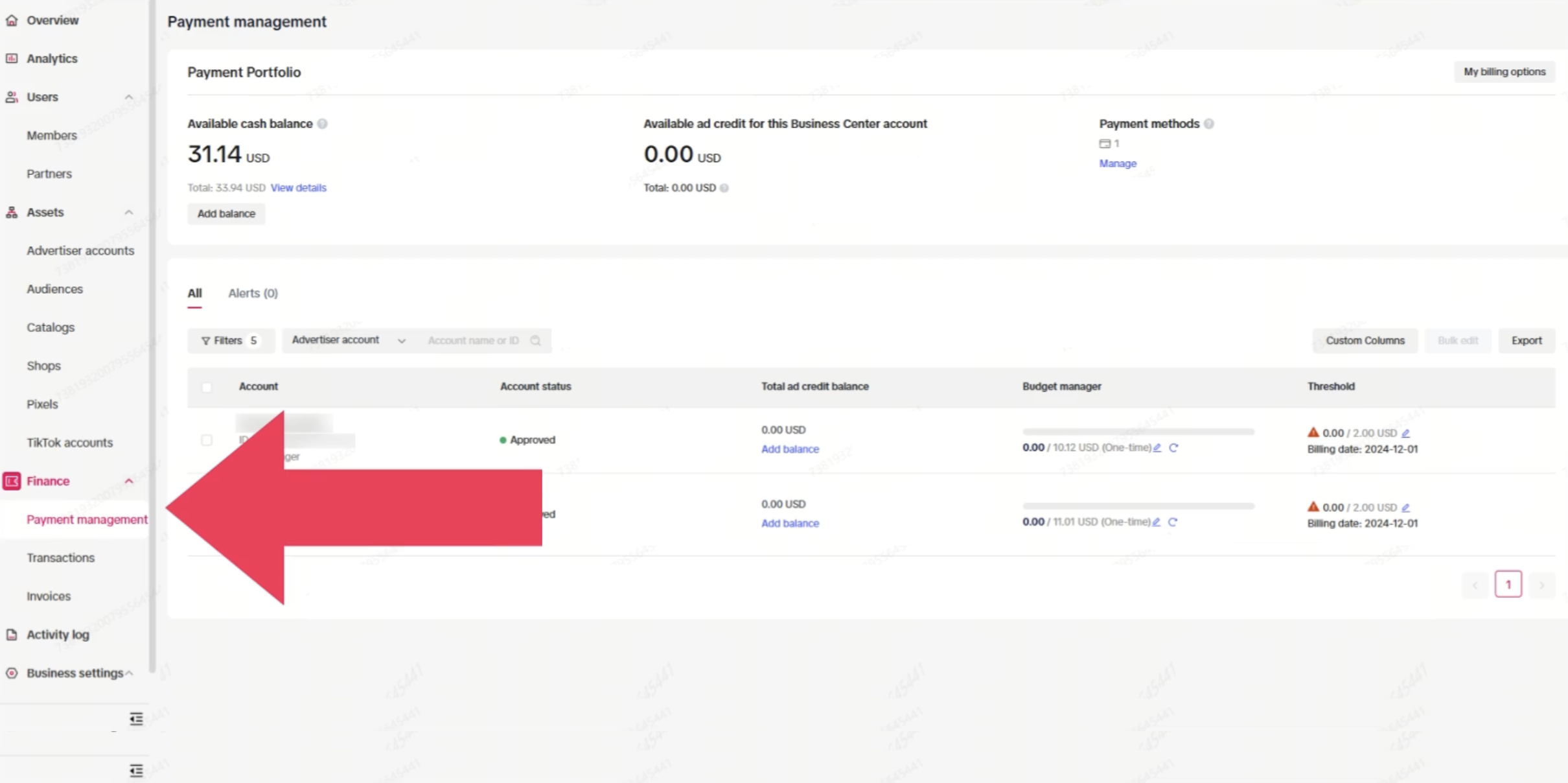
How to access your Payment Portfolio in Business Center
Log in to your Business Center account.
Select Finance.
Select Payment management.
How to access your Payment Portfolio in TikTok Ads Manager
Log in to your TikTok Ads Manager account.
Go to the Tools tab at the top.
Under the Settings column, select Billing.
