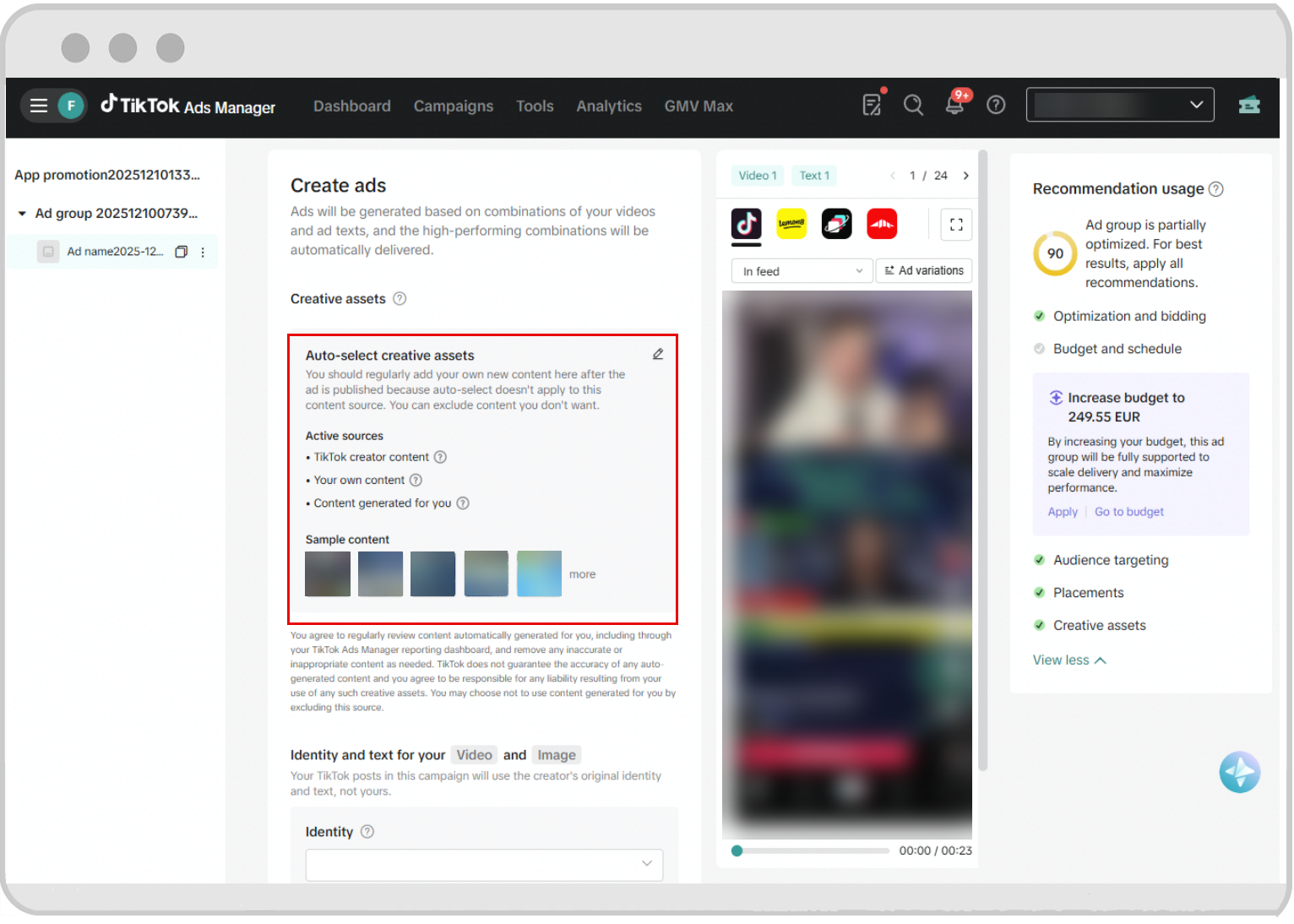
How to use auto-selected creatives for Smart+ to scale and optimize your ads
The auto-selected creatives function in TikTok Ads Manager supplements your own creative assets by automatically exploring high-potential creator content as ad creatives. Learn more about the auto-selected creatives function, its benefits, and how it works.
Availability
Ad objectives: Only available for app promotion (app install, app retargeting, app pre-registration) and lead generation for select customers.
Campaign type: Only available as part of Smart+ campaigns. Learn more about Smart+.
Regions: Global.
Customers: All app and gaming industry advertisers and select lead generation advertisers.
How to use auto-selected creatives to supplement your ad creatives
Log in to TikTok Ads Manager.
Create a campaign and select a supported ad objective (see the Availability section) as well as the Smart+ type.
Finish your campaign settings and complete your ad group settings.
When inputting your ad settings, select the pencil icon next to Auto-select creative assets.

Preview the auto-selected content among:
Creator content: Content from TikTok One production, Content Suite videos, and specific video codes. After publishing the campaign, the system will continuously add newly-approved TikTok One produced assets and Content Suite videos.
Your own content: TikTok account videos (from your organic TikTok account) and your Creative Library assets. After publishing the campaign, the system will not continuously add new videos from Your own content. To add new videos later, edit your ad settings to add creative assets in the Your own content section.
Content generated for you: A video or carousel building upon assets from elements of your mobile app store page. Note: After publishing the campaign, the system will not refresh assets for newly updated App Store or Google Play elements used in the video or carousel.
Auto-selected creatives are chosen for their performance potential based on the destination.
You may alternatively choose to custom select from the potential videos by clicking Switch to custom selection at the top right of the creative assets selection menu.
You may select additional assets to add to the auto-selected content:
Click + Add creative assets.
Under TikTok Posts, add existing TikTok account videos from other accounts via:
Link accounts: Add more accounts to use their videos.
Add posts: Enter more video codes.
Under Creative Library, add new videos from your previously uploaded asset library.
You may apply content exclusion rules for the auto-selected content. You can exclude videos by:
Content source
Creator
Video caption text
Video creation date
Individual video
Click Save.
Click Publish when done.