
How to integrate TikTok App Events SDK
Before you begin
You will need a TikTok ad account and a TikTok App ID to use TikTok App Events SDK for Android and iOS. You can use your existing app if you have one or you can create a new app.
Note: TikTok App Events SDK now supports hybrid setup with MMP in the same account. You can either create a new TikTok Ad account to integrate SDK, or use your existing MMP account to integrate SDK.
How to integrate TikTok App Events SDK
Step 1: Create an App or use an existing app and generate a TikTok App ID and App Secret
Option 1: Add SDK to an MMP connected app (hybrid setup)
Log in to TikTok Ads Manager.
Click the Tools tab and then Events Manager.
Select Data sources, and choose the app that you want to add SDK connection.

Go to the Settings tab, and click choose partner under TikTok App Events SDK.
Follow the process and add SDK to the account. Generate your TikTok App ID and App Secret.


Option 2: Add SDK to a newly created app
Log in to TikTok Ads Manager.
Click the Tools tab and then Events Manager.
Select Connect data source on the top left navigation and choose App.
Select TikTok SDK to connect your app.
Provide your app details and create the app. Follow the process and generate your TikTok App ID and App Secret.


Step 2: Follow the instructions in TikTok Developer Center guide to integrate TikTok App Events SDK
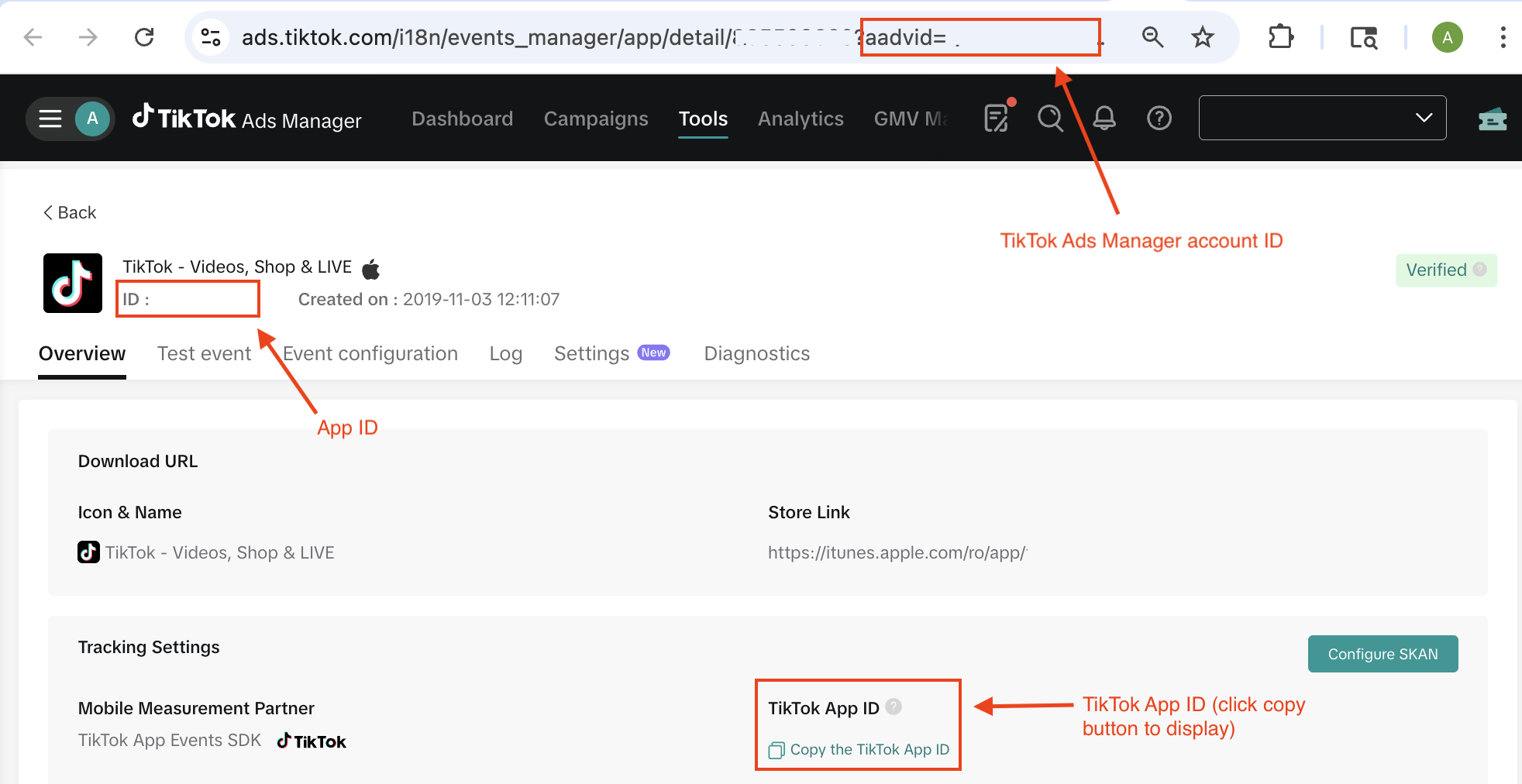
To initialize SDK, you need to have the App id, TikTok App ID, and App secret in advance from step 1.
Demo of App id and TikTok App ID:
Demo of App secret:
Download the SDK in GitHub. For now, we support Native iOS SDK, Native Android SDK and Unity SDK.

Step 3: Event postback through SDK
For a complete list of the standard app events that you can log and auto-logged events, go to: Standard Events.
Auto-logged events are listed below. Note: You can turn off auto-logged events. To learn more, go to App events SDK developer documents.
LaunchApp: When the app is being launched.
InstallApp: When the app is launched for the very first time.
2DRetention: The app is opened again on the day following the day of first open.
Purchase: Successfully completed payments for consumable/non-consumable/subscriptions.
Ensure that the auto-log purchase postback aligns with your business requirements before enabling it. See more details about iOS auto-log purchase event and Android auto-log purchase event.
Special call out for auto-log purchase event: The SDK can auto-capture transactions made through StoreKit (iOS) or Google Play Billing (Android). In order to pass in more properties and parameters or if you are not using native payment gateway from Apple or Google, we recommend you use manual purchase postback.
Step 4: [iOS] Measure SKAN events
In the SKAdNetwork (SKAN) environment, we recommend only having one SDK reporting conversion values. If you are using MMP or another SDK to update conversion values to SKAdNetwork, be sure to add disableSKAdNetworkSupport() to your configuration to avoid update conflicts.
Determine if you need to enable TikTok SDK SKAN measurement:
If you have an MMP:
MMP SDK updates the conversion value (CV) and you intend to use the MMP's SKAN schema: Turn off SKAdNetwork support in the TikTok SDK and do not upload a schema to TikTok Events Manager. (Your MMP remains the single source of truth for CV updates and schema.)
If you do NOT have an MMP:
Ensure that only one SDK in your app updates the SKAN conversion value.
Another non-MMP SDK is updating the CV: Turn off SKAdNetwork support in the TikTok SDK, but upload a schema to TikTok Events Manager. (TikTok will use your schema but won't perform redundant CV updates.)
TikTok SDK is responsible for updating the CV: Enable SKAdNetwork support in the TikTok SDK and upload a schema to TikTok Events Manager. (TikTok becomes the primary handler for SKAN CV updates.)
For more details, refer to App events SDK developer doc.
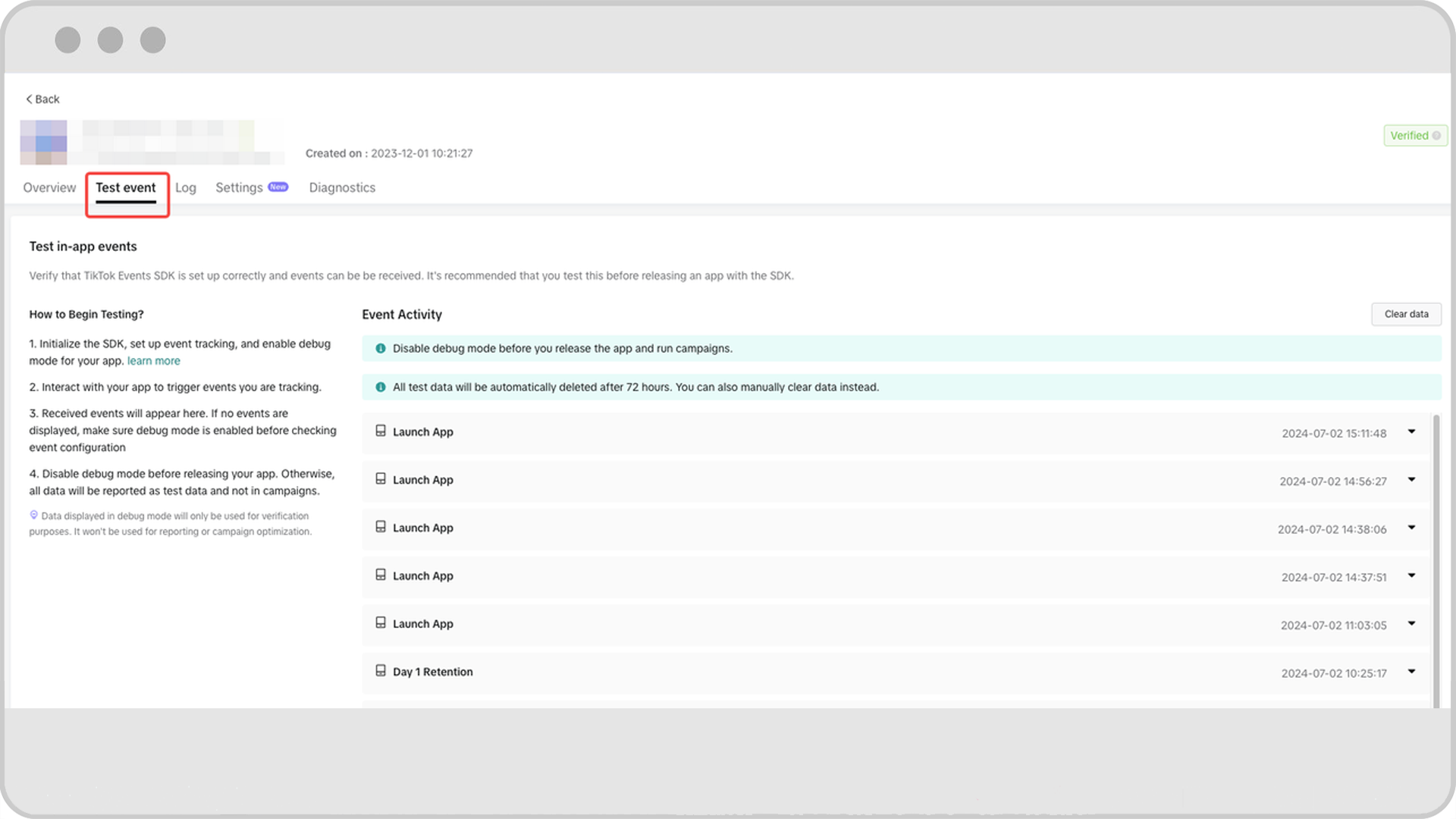
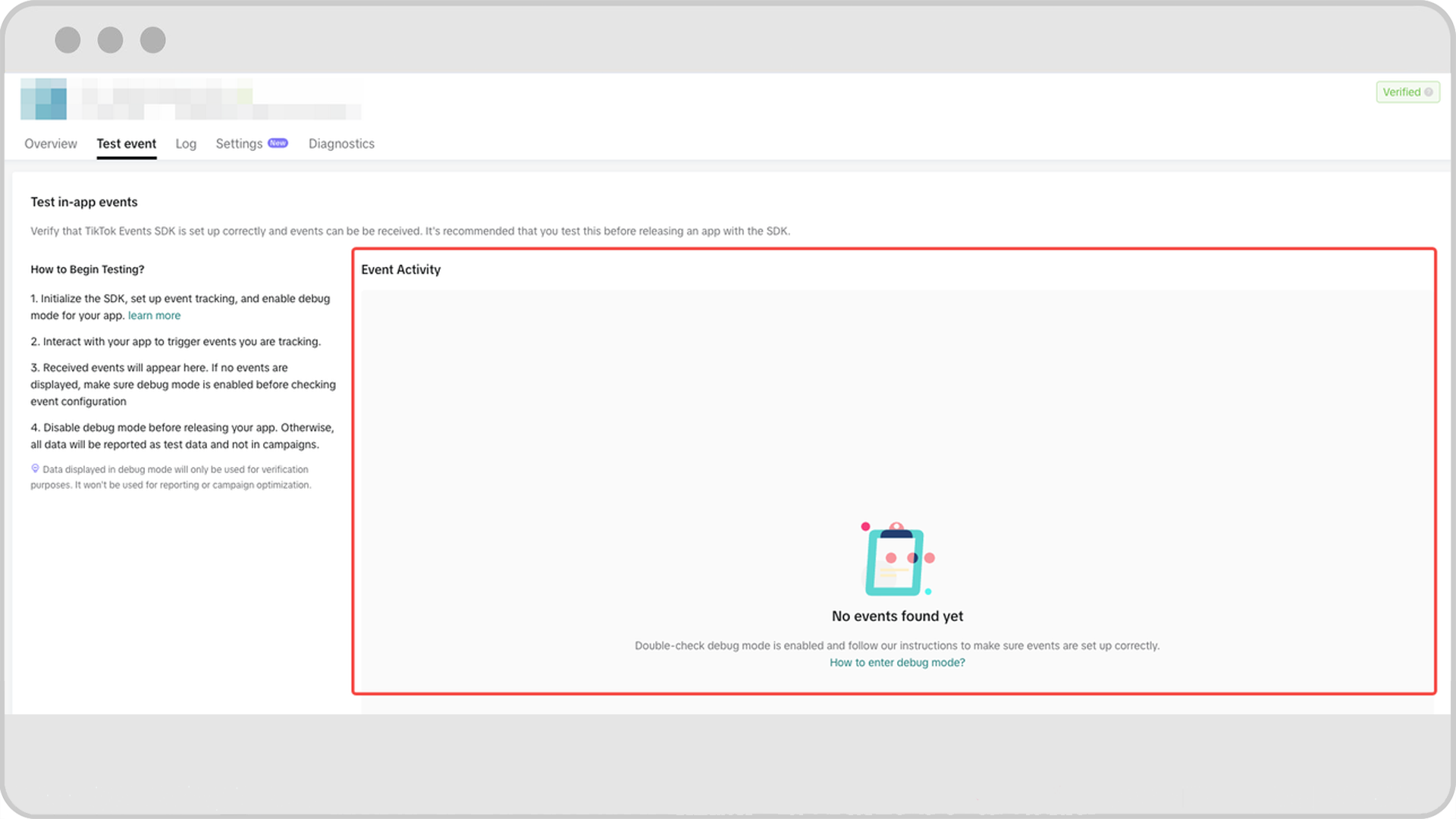
Step 5: Verify postbacks in real-time with Debug mode
From SDK version 1.5.0, there are two methods for users to verify SDK integration before release:
(Recommended) A token-based test events mode; this is entirely done in TikTok Events Manager and does not require code modification.
Manual debug mode, requiring modification. When using manual debug, remember to turn off debug mode before releasing your app. Events generated when using either of these tools go through a test pipeline and cannot be used for reporting.
Debug mode: ON
Debug mode: OFF
Step 6: Release the new app version with TikTok SDK to App Store (iOS) / Play Store (Android)
You can see the SDK event showing up on the Reporting tab in Events Manager once TikTok starts to receive your real-time signal from SDK. Signals under test mode won't show up here.

Step 7: Run your campaign using TikTok SDK.
For any issues or trouble integrating App Events SDK, you can file a ticket with customer support. Make sure to select Measurement and then App Events SDK as the issue category.
